
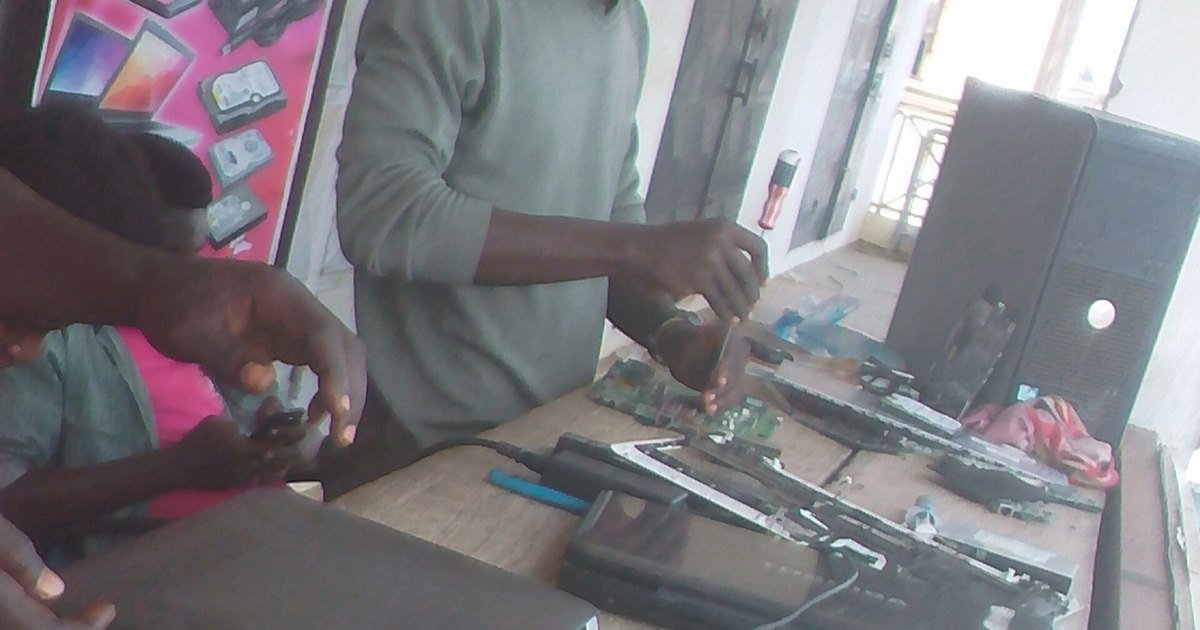
An old laptop that feels slow is rarely worn out. Most of the time it is waiting on a full drive, too many programs launching at startup, a mechanical hard drive, or heat that forces the processor to slow itself down. Deal with those four things and a five-year-old machine can still handle browsing, email, documents and video calls comfortably.
Photo: Wikimedia Commons (CC BY-SA 4.0)
Measure first, then change things
Open your system monitor before you delete or install anything. On Windows, Task Manager shows which apps are using the processor, memory, disk and network right now. On a Mac, Activity Monitor does the same job. Sort by disk or memory and leave it open for a few minutes. If disk use sits near the top of the scale while you are doing almost nothing, storage is your bottleneck rather than the processor.
Pay attention to the first few minutes after you log in. A long, churning start points to startup programs and background services, not to ageing silicon.
What to check before touching anything
- Free space on the main drive. A drive that is nearly full leaves the system very little room to work with.
- How many programs start automatically, and which ones you actually use in the first hour of your day.
- Whether the fan runs constantly and the underside gets hot during light work.
- Which browser tabs and extensions are open. A single tab can hold a surprising amount of memory.
Free up space and cut startup clutter
Empty the downloads folder, remove software you have not opened in a year, and move large photo, video and game libraries to an external drive. Then open the startup settings on your system and switch off everything you do not need immediately. Cloud sync clients, launchers, chat apps and updater helpers are the usual offenders, and you can still open them by hand when you need them.
Microsoft’s tips for improving PC performance and Apple’s guide for a slow Mac both put storage, startup items and memory pressure near the top of the list, which is a good sign that this is where most of your gains live: support.microsoft.com and support.apple.com.
Be sceptical of registry cleaners, speed booster utilities and paid tune-up tools. They rarely help and sometimes cause new problems.
Upgrade storage and memory if your model allows it
Swapping a mechanical hard drive for a solid state drive is the single biggest change you can make to an older laptop. Everyday tasks such as starting the system, opening a browser or loading a document stop feeling like waiting rooms.
Check your exact model’s manual or support site before buying parts. Some laptops let you replace the drive and add memory through a small panel, others solder everything to the board, and some allow only one of the two. Free step-by-step teardown and repair guides for a wide range of models are published at ifixit.com.
If neither part is replaceable and the machine is also struggling with modern video calls, a used business laptop from a few years ago is often better value than a repair.
Keep it cool and keep it updated
Dust blocks the vents and insulation keeps heat in, and both push the processor into throttling. Use the laptop on a hard, flat surface rather than a bed or cushion, and clear the vents with short bursts of compressed air while the machine is off. If it still runs hot and loud, a technician can clean and repaste the cooling system.
Install system and security updates when they arrive, and restart when asked instead of leaving updates pending for weeks. Keep only the browser extensions you recognise, since each one adds work to every page you open.
The bottom line
Clean out the drive, trim startup, control heat and upgrade the drive or memory if the machine allows it. That routine brings most older laptops back to a comfortable working speed long before replacement is the only option.
Photo: Aditya Oberai / Openverse (by-sa)